
Save and reuse prompts
Questions and tasks you often need go into the prompt library. From there you bring them into the chat with one click, in the browser and in Word.
At a glance
- The library is split into My Prompts, Team Prompts and Examples.
- Shared prompts are read-only for others. Save to My Prompts makes your own copy.
- All prompts are also under Templates in the Prompts tab.
How it works
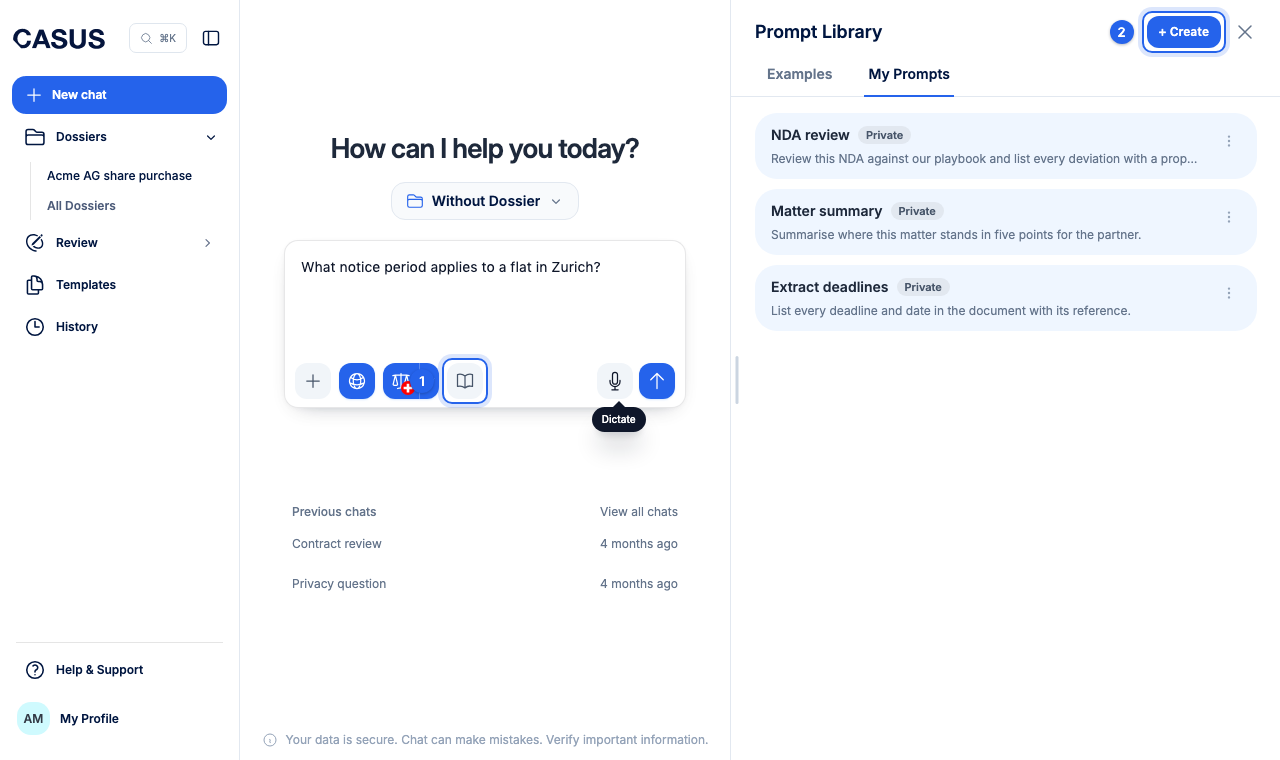
- 1In the chat's input field, click Open library.
- 2Click Create at the top, give the prompt a name and write the text.
- 3Share with team makes the prompt available to everyone in the team.
- 4To use one, open the library and pick the prompt.
This might help too
Still have questions?
Email us: contact@getcasus.com