
Approve CASUS in Microsoft Entra
As an admin, you approve CASUS once in Microsoft Entra for your whole organisation. After that, everyone connects SharePoint or Outlook in CASUS without any further approval. You don't need a CASUS account of your own.
At a glance
- You need one of these roles: Global Administrator, Privileged Role Administrator, Cloud Application Administrator or Application Administrator.
- The steps above apply if the admin consent workflow is on in your organisation and someone has already sent a request.
- If CASUS is already listed under Enterprise apps and All applications: open CASUS, go to Permissions under Security and click Grant admin consent for …. This approves SharePoint and Outlook together.
- Without a request and without a listing, an approval link for SharePoint, Outlook or both does it. We send it to you on request. It shows CASUS, the verified publisher and exactly the permissions you chose.
- To remove it, revoke the permissions under CASUS in Enterprise apps or delete the app. Individual people turn the integrations off in CASUS.
How it works
- 1Sign in to the Microsoft Entra admin center.
- 2Go to Entra ID, Enterprise apps and, under Activity, to Admin consent requests.
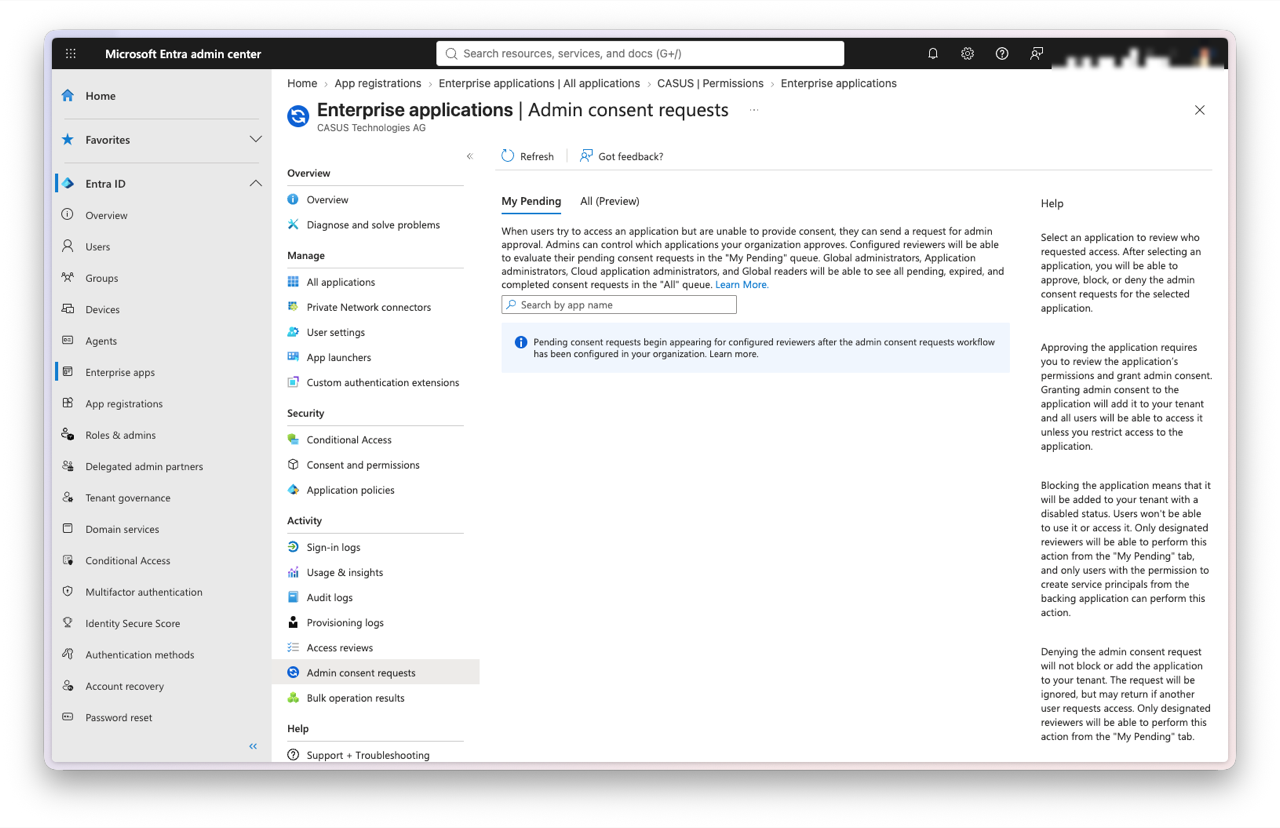
- 3On the My Pending tab, open the request for CASUS.
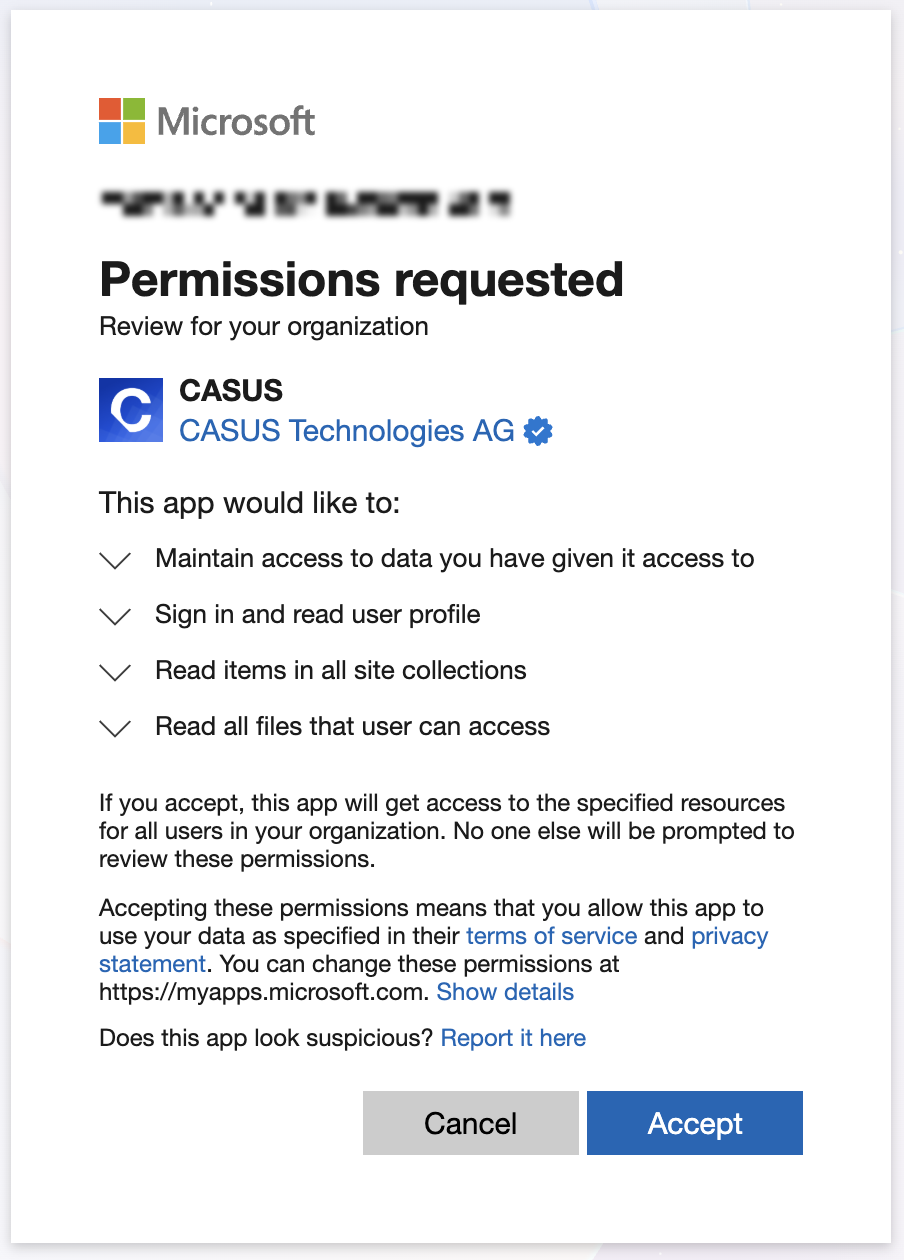
- 4Click Review permissions and consent, check the list and click Accept.
If it doesn't work
If the message still appears after the approval, check under Enterprise apps, CASUS and Properties whether Assignment required? is on. If so, assign the people or groups under Users and groups. If the confirmation page says “Approval not confirmed”, open the approval link again and finish the approval in the same browser within ten minutes.
This might help too
Still have questions?
Email us: contact@getcasus.com