
Get approval from your Microsoft admin
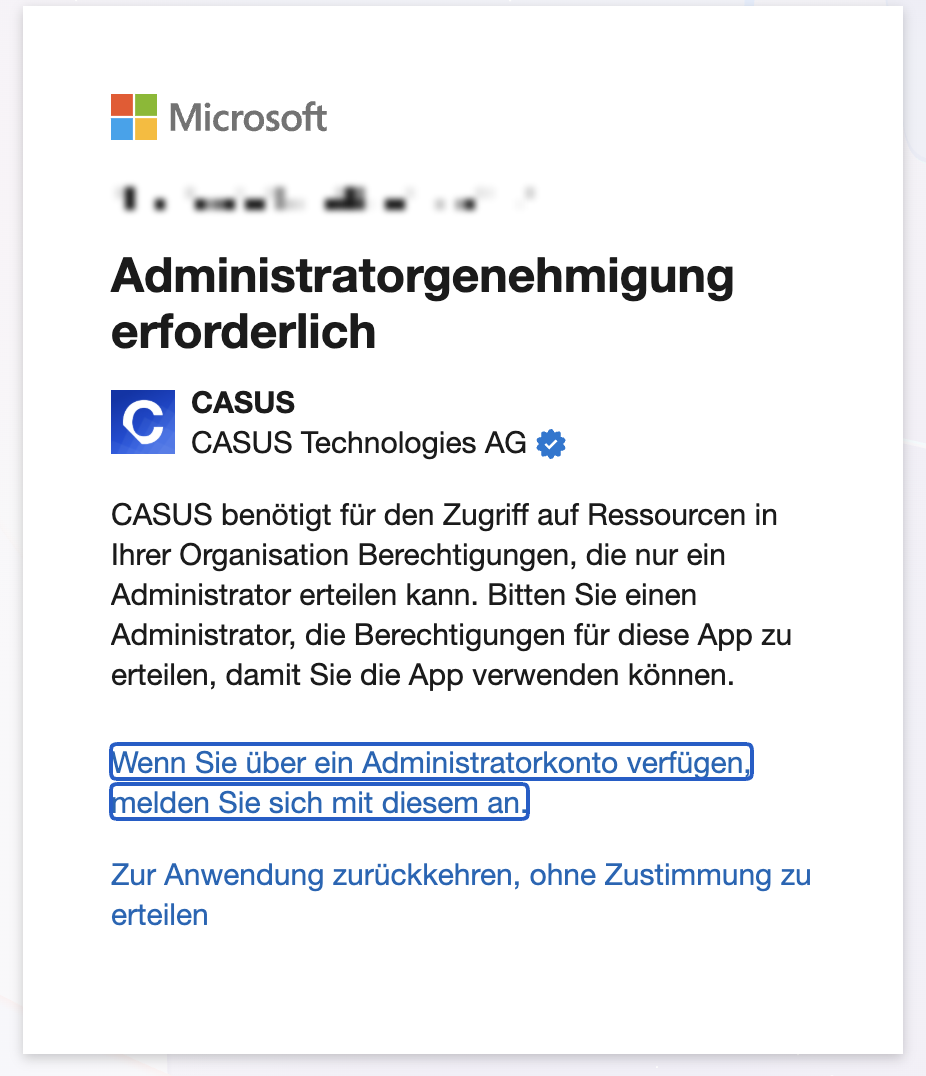
If Microsoft shows Need admin approval when you connect SharePoint or Outlook, you may not give CASUS access yourself. A Microsoft admin in your organisation then approves CASUS once for everyone. If you can sign in right away, there is nothing to do.
At a glance
- CASUS is registered with Microsoft as an app from the verified publisher CASUS Technologies AG.
- All permissions are delegated: CASUS always acts on behalf of the signed-in person and only sees what they can already access.
- Sign-in: read name and email address and stay signed in (openid, profile, offline_access, User.Read).
- SharePoint: read sites and files only (Sites.Read.All, Files.Read.All). CASUS cannot change or delete anything there.
- Outlook: read emails in your own mailbox only (Mail.Read). CASUS cannot send, change or delete emails.
- CASUS only requests a permission when someone turns on the integration. If you only use SharePoint, you don't grant access to your emails.
How it works
- 1Write to your IT or IT provider and say whether you want SharePoint, Outlook or both. Send them the link to this article and to Approve CASUS in Microsoft Entra.
- 2If Microsoft shows you a field for a justification and a Request approval button, send the request. It goes straight to your admin, and you get an email as soon as they have decided.
- 3After the approval, reload CASUS once, open Integrations in your account, turn on SharePoint or Outlook and sign in with your Microsoft account.
If it doesn't work
If the message keeps appearing after the approval, reload CASUS and turn the integration on again. Check that your admin approved the right integration. If Microsoft shows an error with an AADSTS code, send us the code and a screenshot.
This might help too
Still have questions?
Email us: contact@getcasus.com