
Proofread: find errors in an email draft
Proofread checks your own text in a draft for errors and unclear passages before you send it. CASUS uses quoted emails and attachments to compare, but doesn't correct them.
At a glance
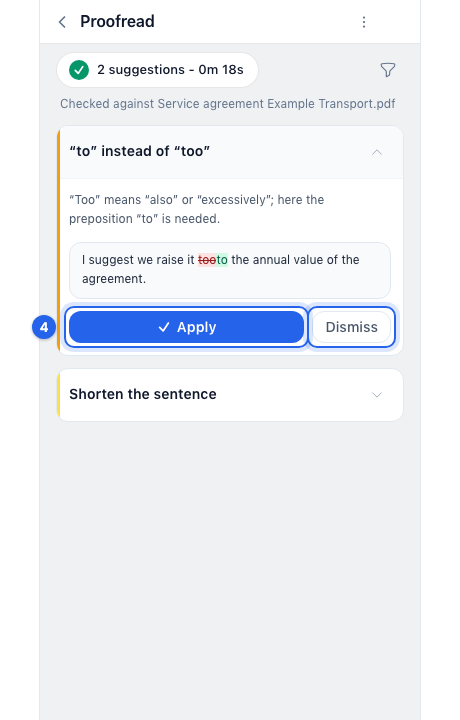
- Checked against lists the attachments CASUS read to compare, Not read those it didn't.
- You find earlier checks under Previously generated.
How it works
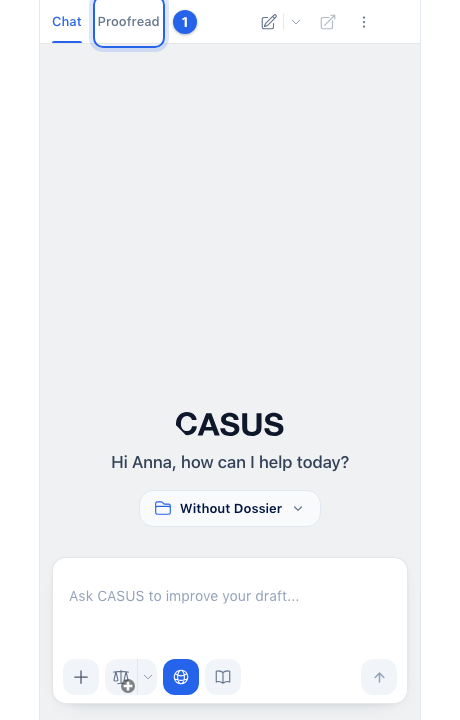
- 1Open your draft, click CASUS and switch to the Proofread tab.
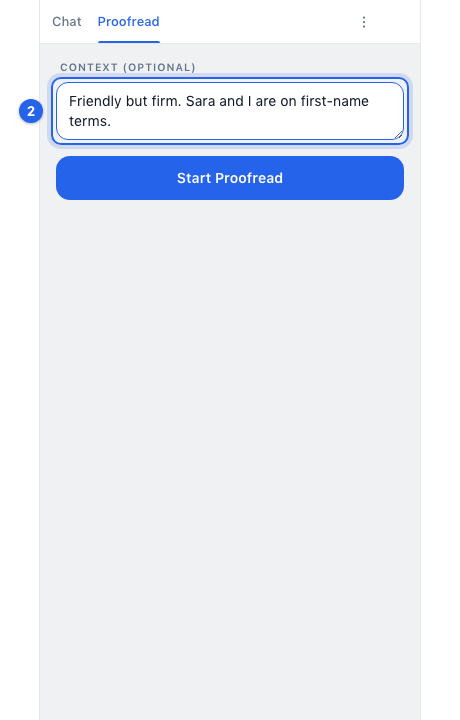
- 2Under Context (optional), add what matters, such as the tone.
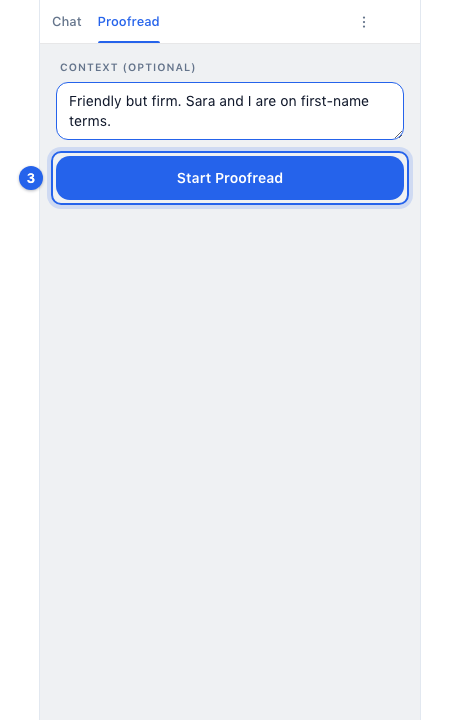
- 3Click Start Proofread.
- 4Click a suggestion to open it and take the correction with Apply. You can adjust the suggestion first. Dismiss leaves it out.
If it doesn't work
If it says “No suggestions found in this email”, CASUS found nothing. If something is missing, describe it in the context and start again.
This might help too
Still have questions?
Email us: contact@getcasus.com