
Connect your mailbox to CASUS
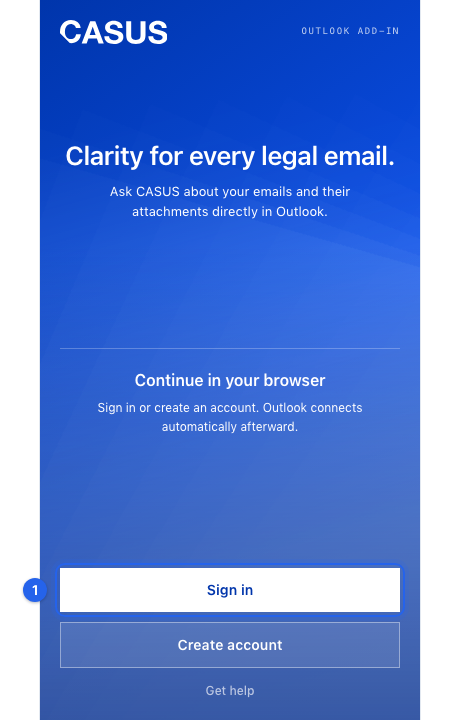
First you sign in to CASUS in the add-in, with a code in the browser. After that you can connect your mailbox, and CASUS also reads other emails and whole threads. You don't need that for questions about the open email.
At a glance
- With a connected mailbox, CASUS may only read your emails, never send or delete them.
- You see Connect Outlook only if it is switched on for your workspace.
How it works
- 1Click Sign in in the add-in. It shows you a Connection code.
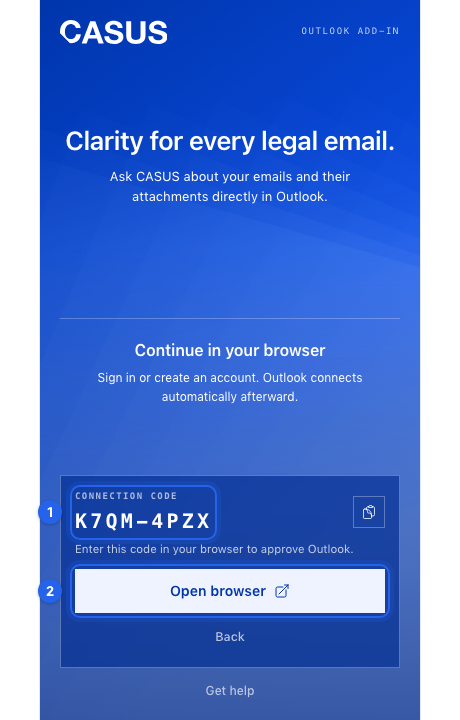
- 2Click Open browser, enter the code and click Approve Outlook. The add-in then says Signed in.
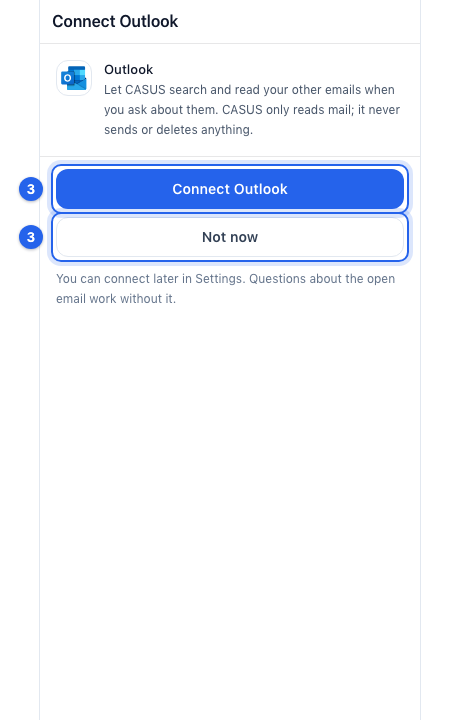
- 3If CASUS asks you to Connect Outlook, click it and approve the access at Microsoft in the browser. Or click Not now.
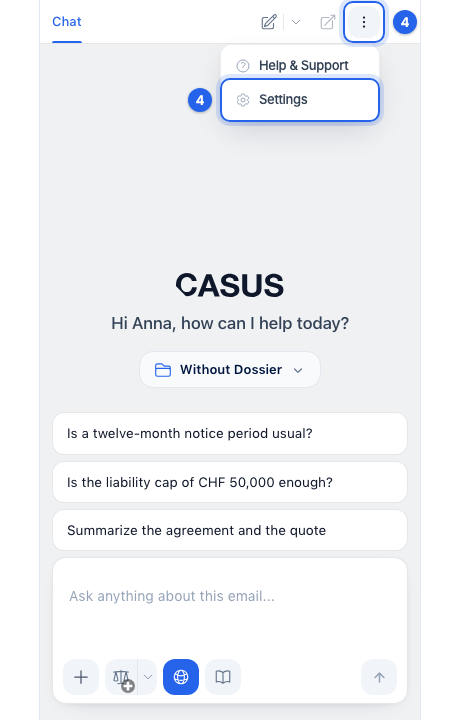
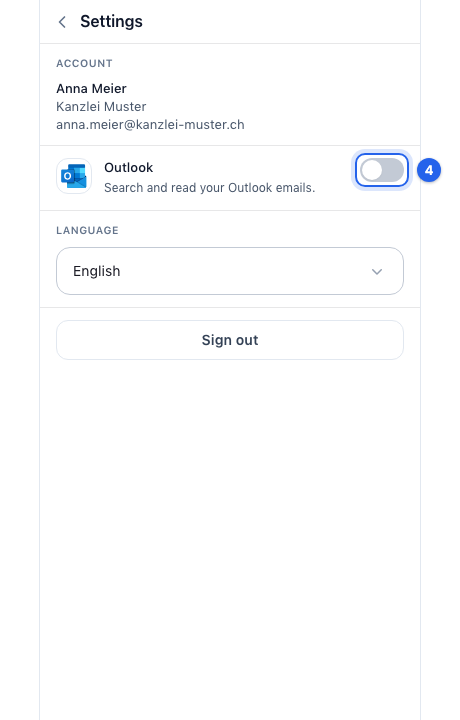
- 4Later you find this under More options, Settings and the Outlook switch.
If it doesn't work
If approving in the browser doesn't work, click Back in the add-in and sign in again.
This might help too
Still have questions?
Email us: contact@getcasus.com