
Sign in to the Word add-in
You sign in to the Word add-in through the browser: Word shows you a code and you approve it in the browser. That way you never type your password into Word.
At a glance
- The code is valid for 10 minutes.
- Word is connected to the account you are signed in with in the browser.
- You sign out under More options, Settings and Sign out.
How it works
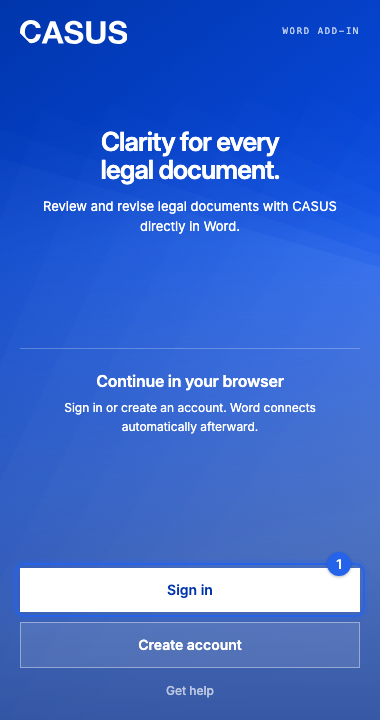
- 1Open CASUS in Word and click Sign in.
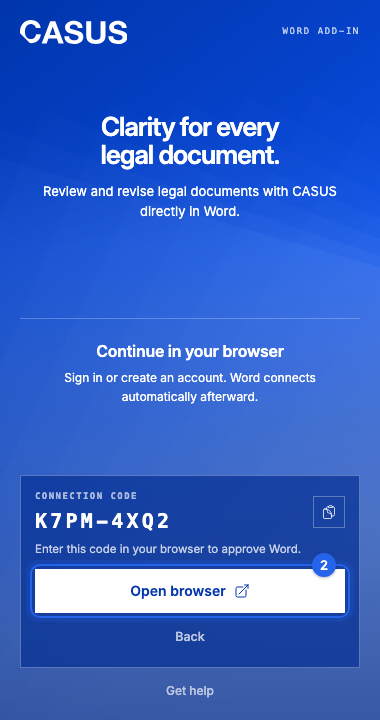
- 2Word shows you a Connection code. Click Open browser.
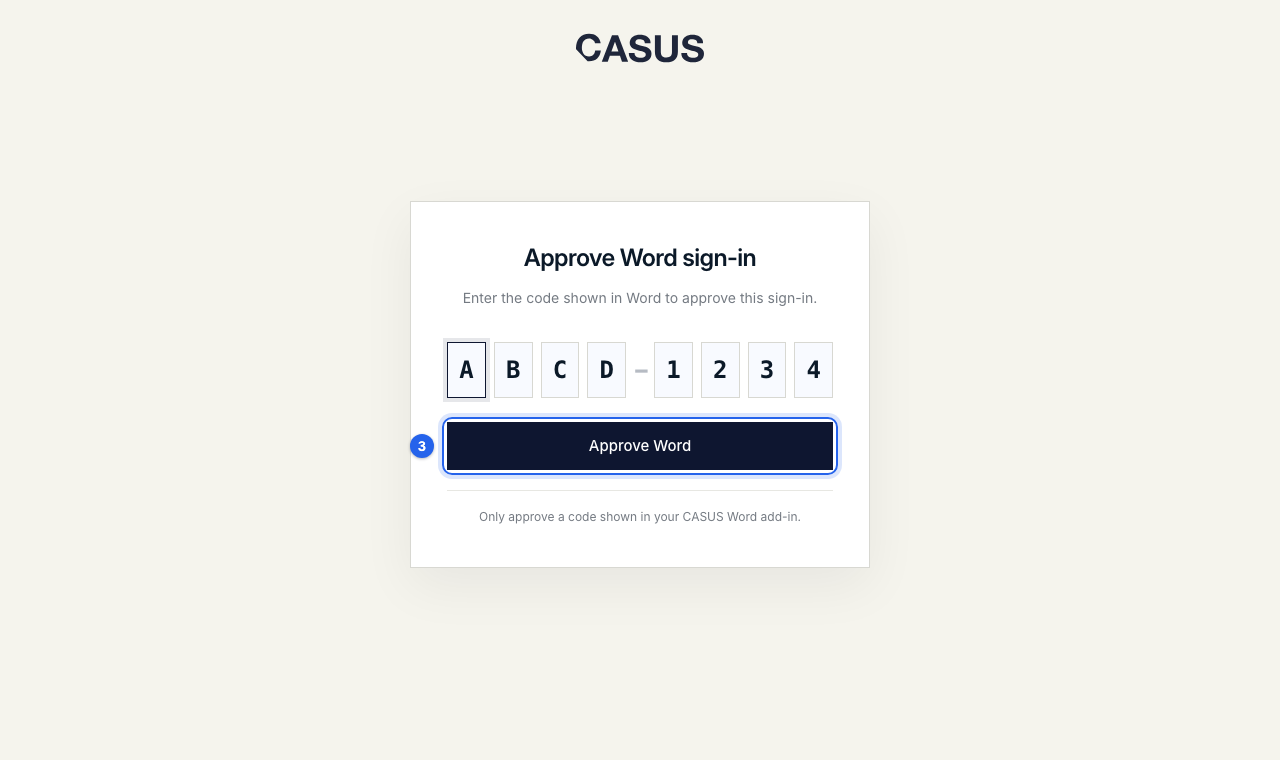
- 3Sign in to CASUS in the browser if you aren't already, with Microsoft, Google, email or SSO.
- 4Check that the code matches the one in Word and click Approve Word.
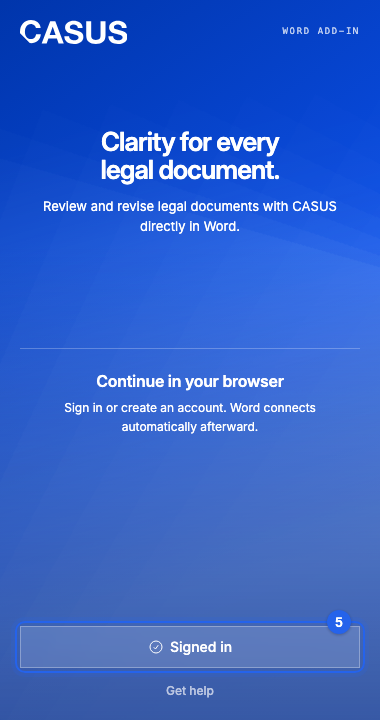
- 5When it says “Word is connected”, switch back to Word. It now says Signed in.
If it doesn't work
If you connected the wrong account, sign out in Word and in the browser, then connect again. For other messages, see the article Word asks for a code in the browser.
This might help too
Still have questions?
Email us: contact@getcasus.com