
Install the Word add-in
There are two ways: with the direct link, Word opens and you add CASUS in one click. If that doesn't work, you add CASUS right inside Word through Add-ins. Either takes about five minutes. If your company manages your Microsoft account, your IT usually deploys the add-in, as described in Deploy the Word add-in in the Microsoft Admin Center.
At a glance
- First check that you are signed in to Word with the right Microsoft account.
- You also find the direct link in CASUS: in your account under Word Add-in, with the Install add-in button.
- The direct link opens Word on your computer. For Word in the browser, use the way right in Word.
- The add-in works in Word for Windows, Word for Mac and Word in the browser. There is no add-in for iPad or iPhone.
How it works
- 1Open this guide on the computer where Word is installed and click Install the CASUS Word add-in. If your browser asks whether it may open Word, allow it.
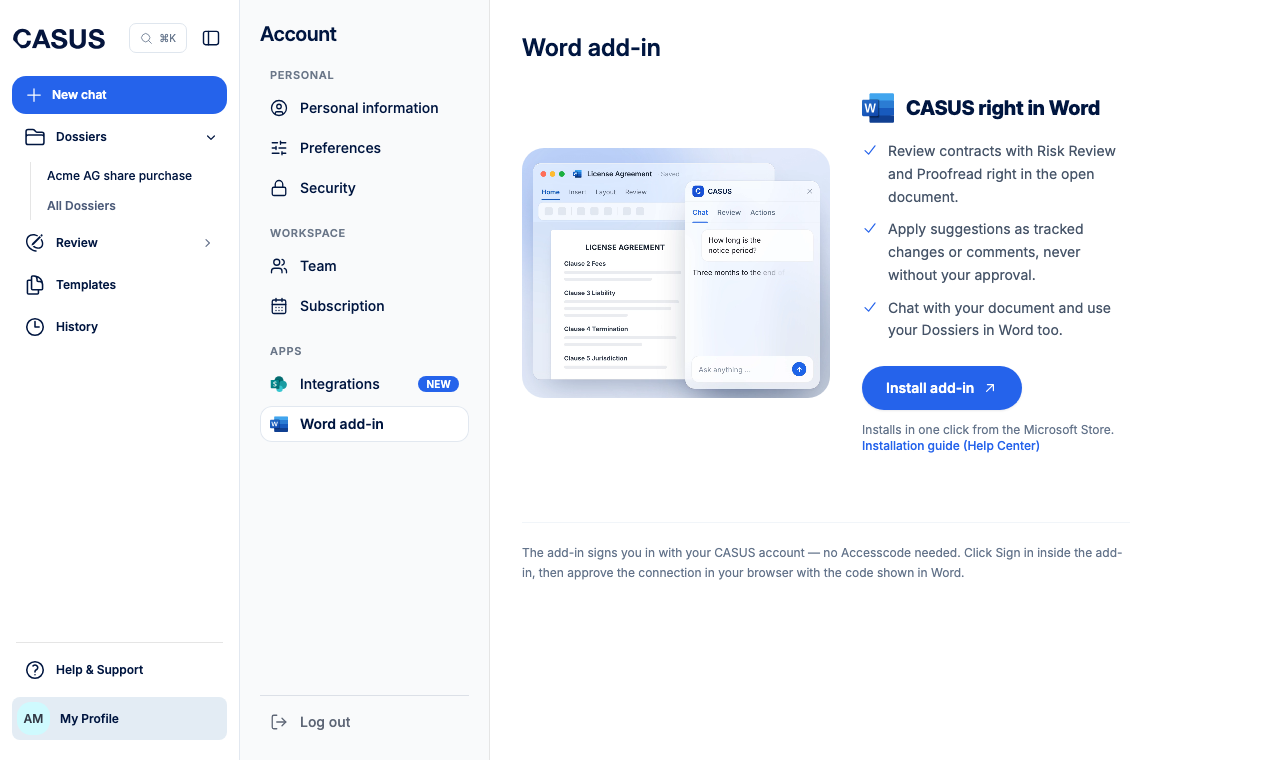
- 2Word opens with a new page. Add CASUS there in one click.
- 3The CASUS icon now sits at the far right of the Home tab. Click it, and CASUS opens on the right.

- 4Click Sign in and approve the connection in your browser with the code Word shows you.
Without the direct link: right in Word
- 1Open Word with a document and check that you are signed in with the right Microsoft account.
- 2On the Home tab, click Add-ins at the far right.
- 3Type CASUS in the search field and click Add next to CASUS.
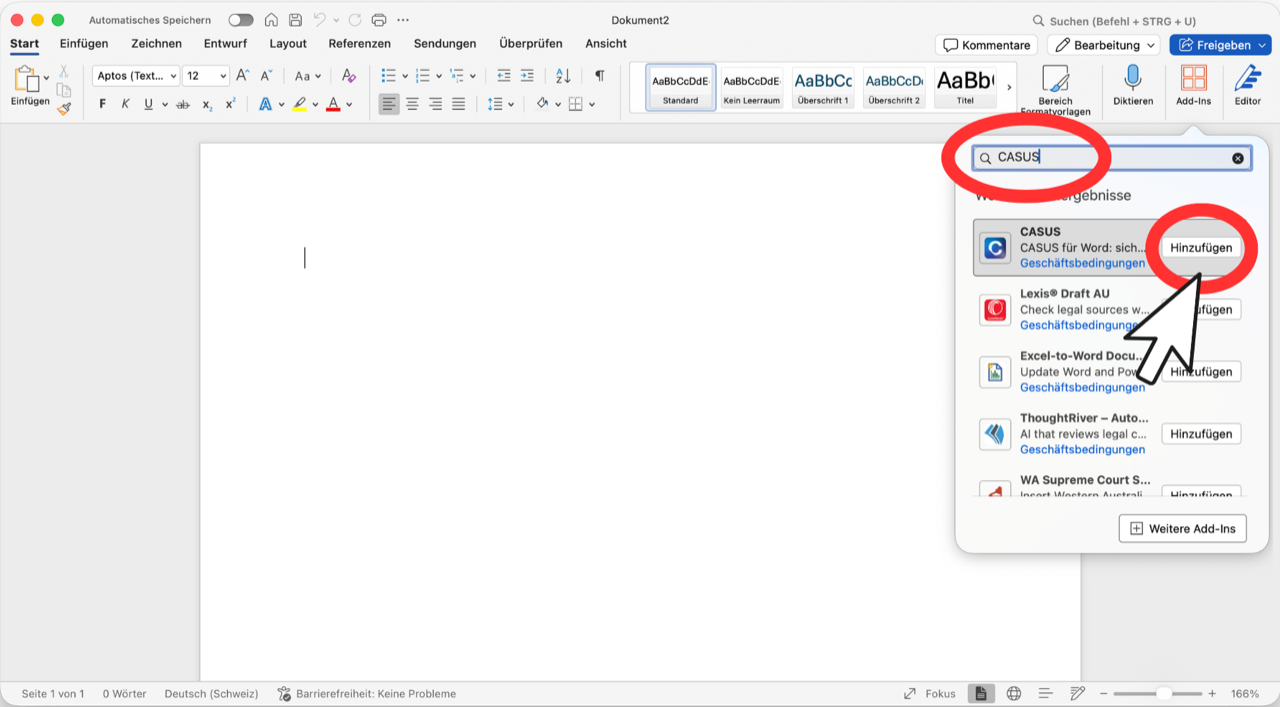
- 4The CASUS icon now sits at the far right of Home. Click it and sign in, as in step 4 above.
If it doesn't work
If the direct link doesn't open Word, use the way right in Word. If the button is grey, open a .docx document. If the add-in can't be added at all, your IT has probably blocked add-ins. They can deploy CASUS for everyone as described in Deploy the Word add-in in the Microsoft Admin Center. Until then you work in the browser.
This might help too
Still have questions?
Email us: contact@getcasus.com