
Word asks for a code in the browser
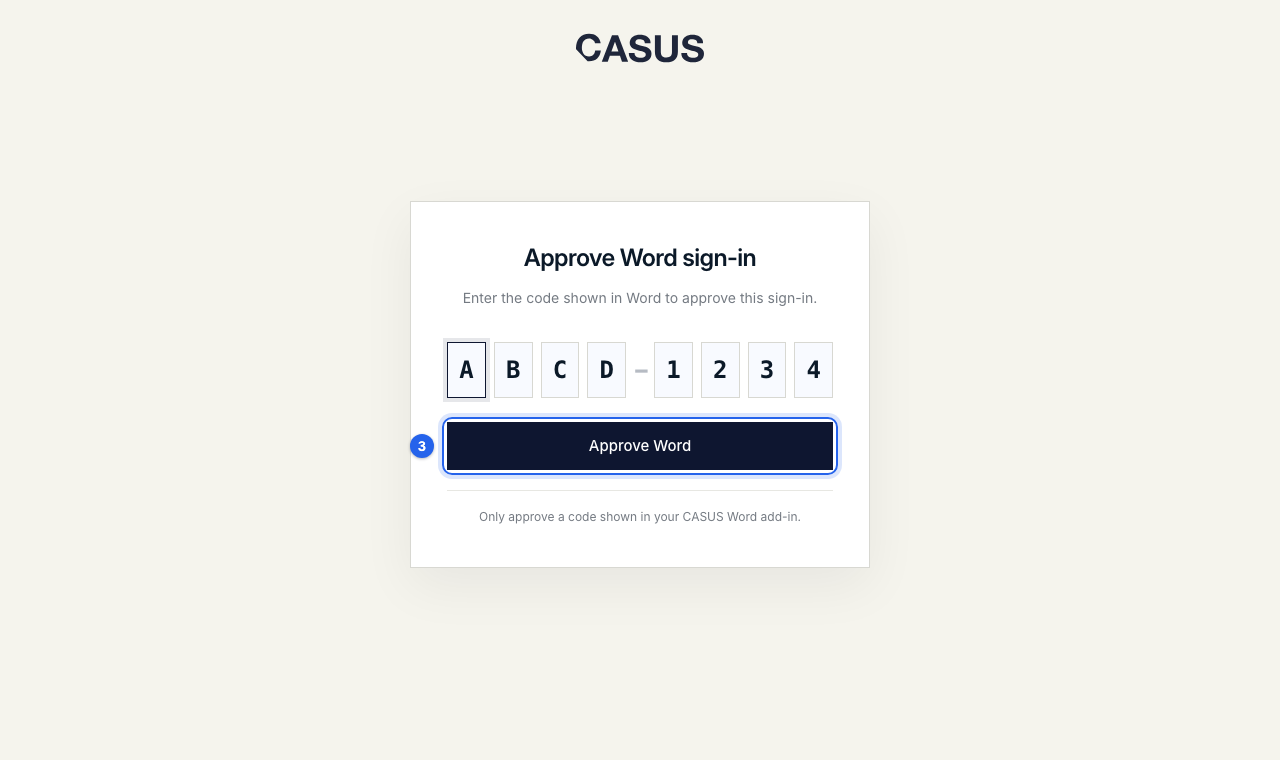
The code connects Word to your CASUS account. You approve it once in the browser, and Word stays signed in after that. Only approve a code that your own Word shows you.
At a glance
- “That code expired”: the code is valid for 10 minutes. Start sign-in again from Word.
- If the code matches no active Word sign-in, check it or start again from Word.
- If it asks you to finish onboarding first, complete the first questions about your account in the browser.
How it works
- 1Click Open browser in Word. The code is usually filled in already.
- 2If no browser opens, copy the code with Copy connection code and open CASUS in the browser yourself.
- 3Click Approve Word in the browser and switch back to Word.
If it doesn't work
If a new code doesn't work either, write to us and tell us the message you see.
This might help too
Still have questions?
Email us: contact@getcasus.com