
Deploy the Word add-in in the Microsoft Admin Center
As a Microsoft 365 admin, you deploy the Word add-in to everyone or to specific groups in the Microsoft 365 admin center. CASUS then appears in Word without anyone installing it themselves.
At a glance
- In the Microsoft Store the add-in is called CASUS; its store ID is WA200009650.
- It can take up to 72 hours until CASUS appears in Word for everyone. Quitting Word completely and opening it again often helps.
- In Word, centrally deployed add-ins show under Add-ins and Admin Managed.
- Each person then signs in once with their CASUS account in the add-in.
How it works
- 1Sign in to the Microsoft 365 admin center as an admin and go to Settings and Integrated apps.
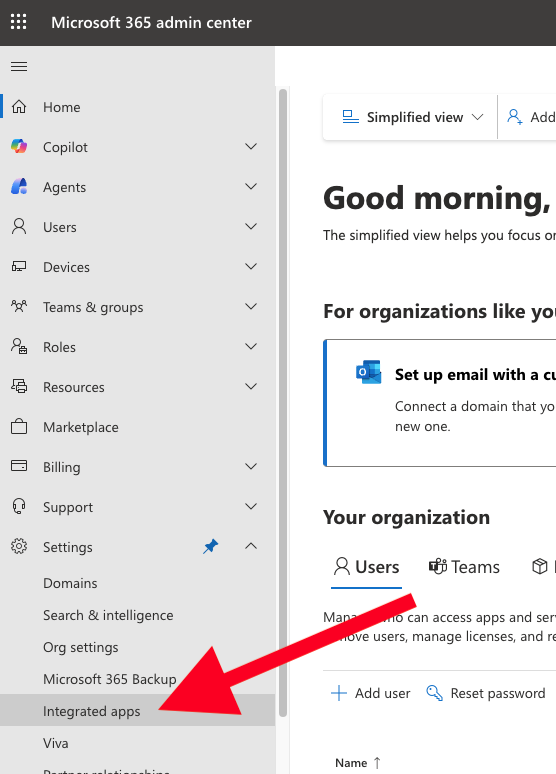
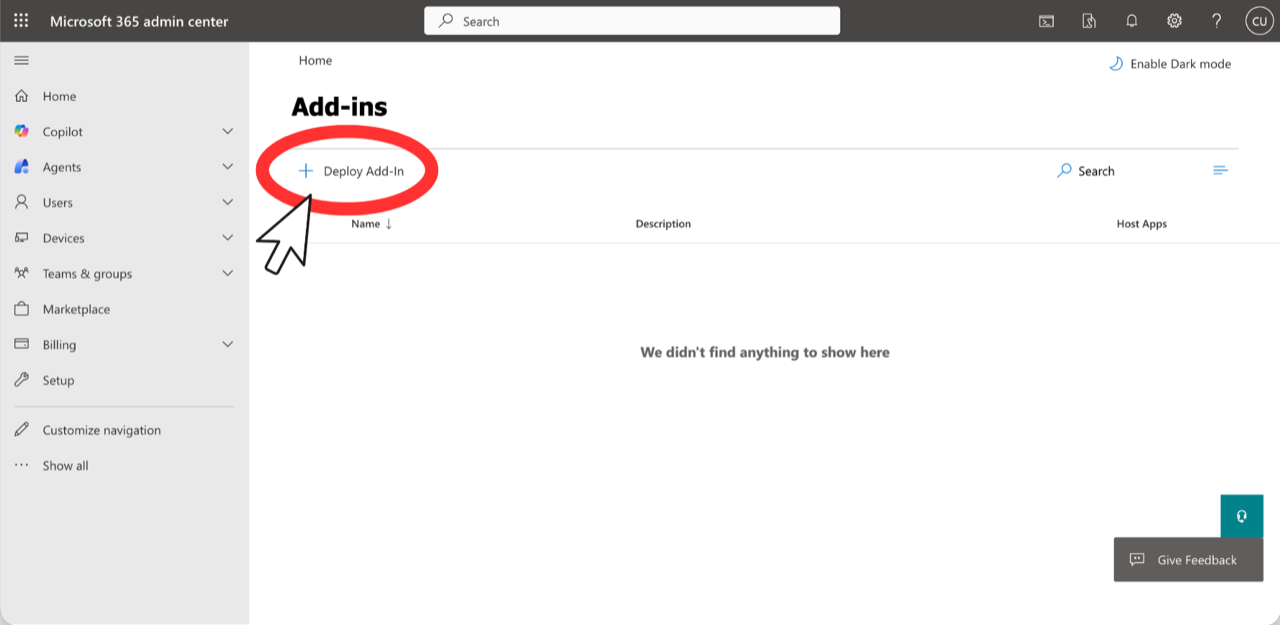
- 2Switch to the Add-ins tab, click Deploy Add-in at the top and then Next.
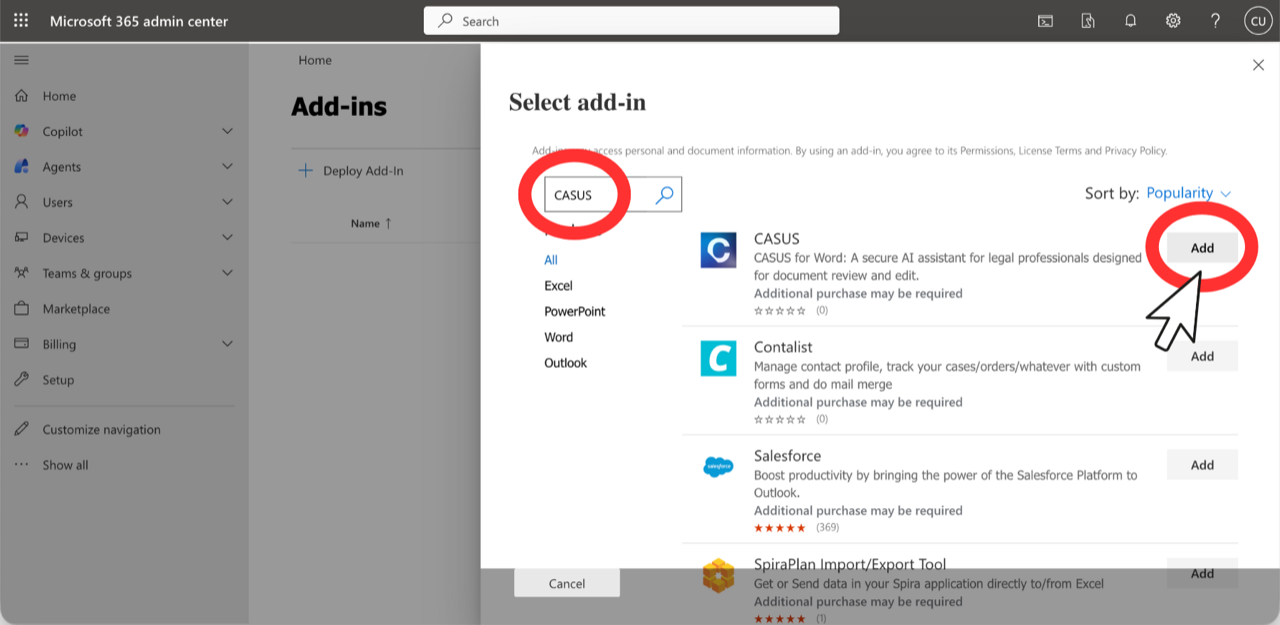
- 3Select Choose from the Store, search for CASUS and click Add.
- 4Confirm the license and privacy terms.
- 5Choose who gets the add-in: Everyone, Specific users/groups or Only me. Find specific people and groups with the search field.
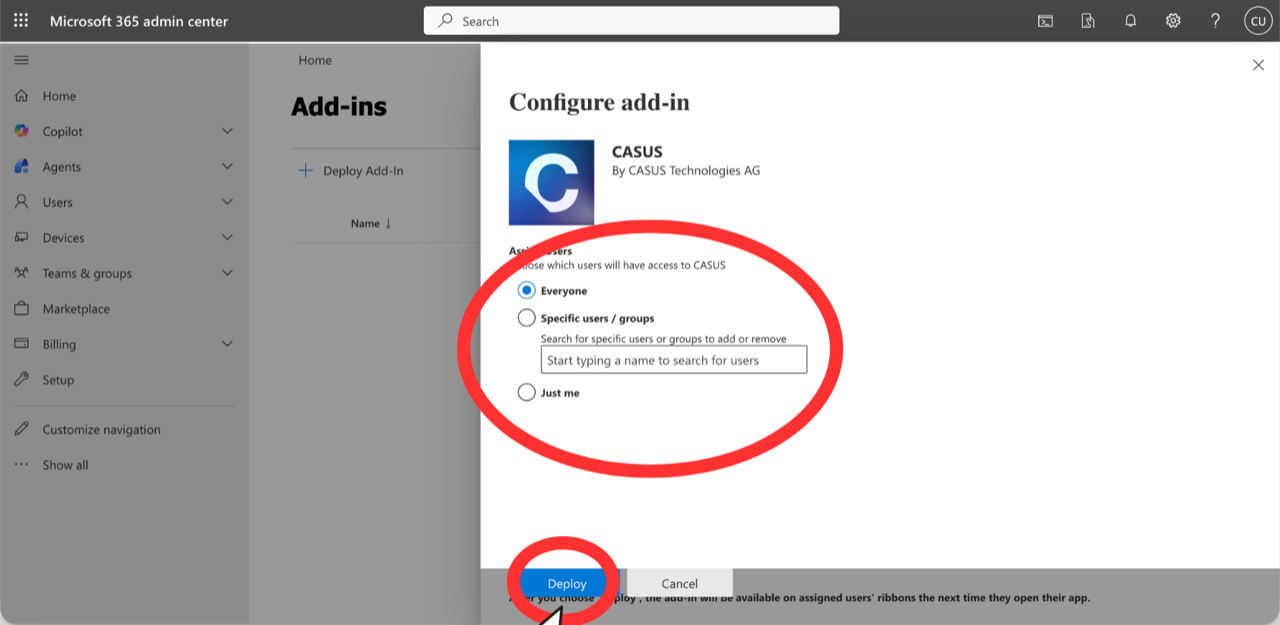
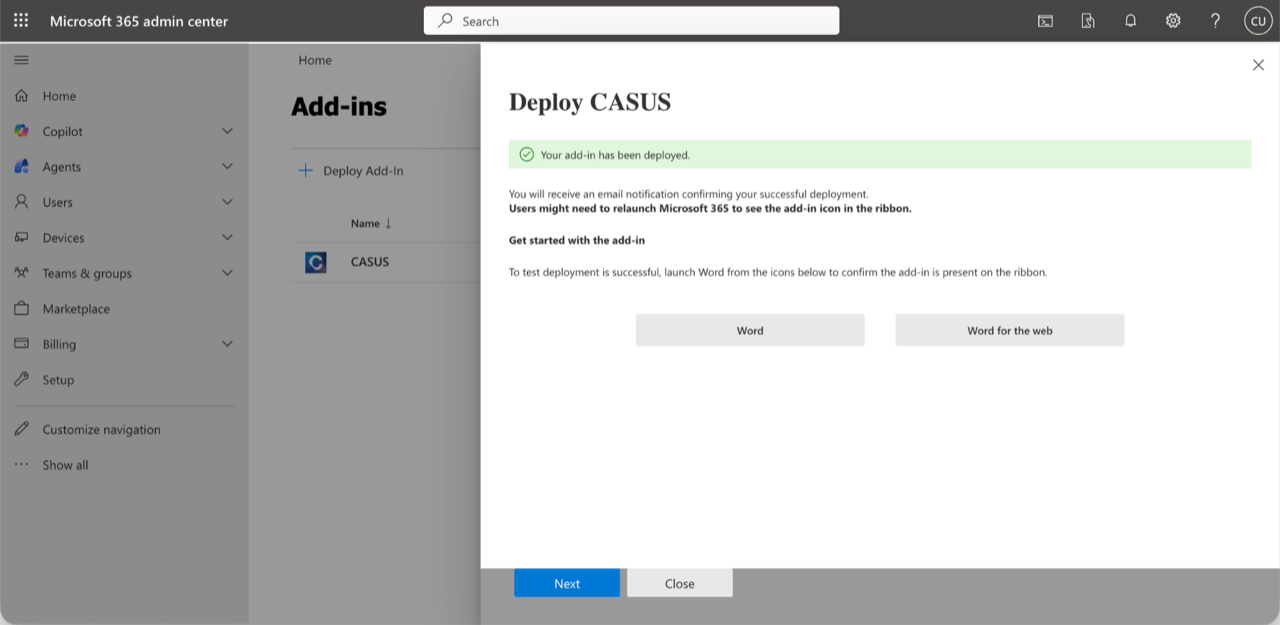
- 6Click Deploy. A green checkmark shows that it worked.
If it doesn't work
If CASUS shows only a white area in Word, your firewall usually blocks CASUS's addresses. Which ones to allow is in Allow the addresses in your firewall. If CASUS is still missing after three days, check under Integrated apps whether the person or group is assigned, or write to us.
This might help too
Still have questions?
Email us: contact@getcasus.com