
Read results and apply suggestions
You decide on each suggestion yourself: take it as a visible change, take it directly or leave it out. In the browser you download the document with your changes at the end; in Word they go straight into the open document.
At a glance
- In the browser, each change you take saves a new version of the document.
- In Word, Mode sets how suggestions are taken by default. If the document only allows tracked changes, there are no direct edits.
- Apply all directly takes all open suggestions at once.
- If a card says “Needs your input”, the suggestion still needs a detail from you.
How it works
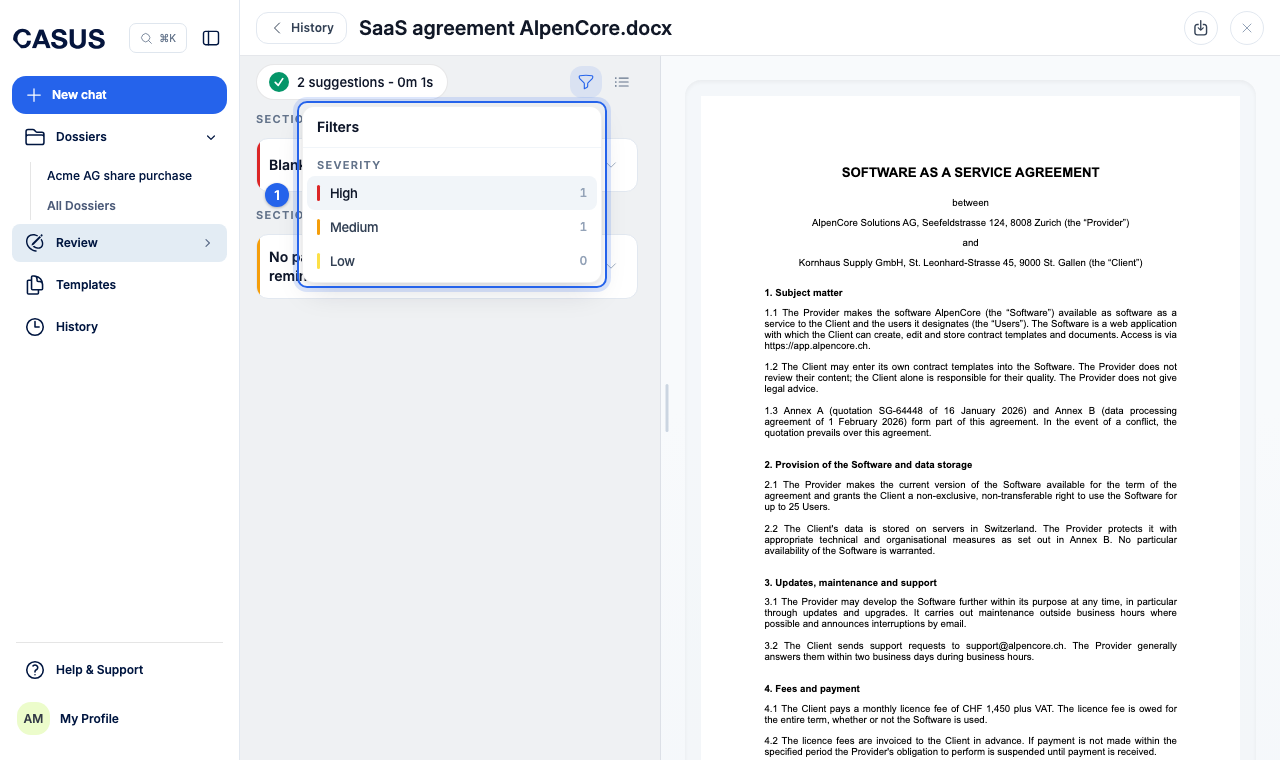
- 1Filter by Severity to start with the most important points.
- 2Click Locate to see the place in the document. You can edit the proposed text before taking it.
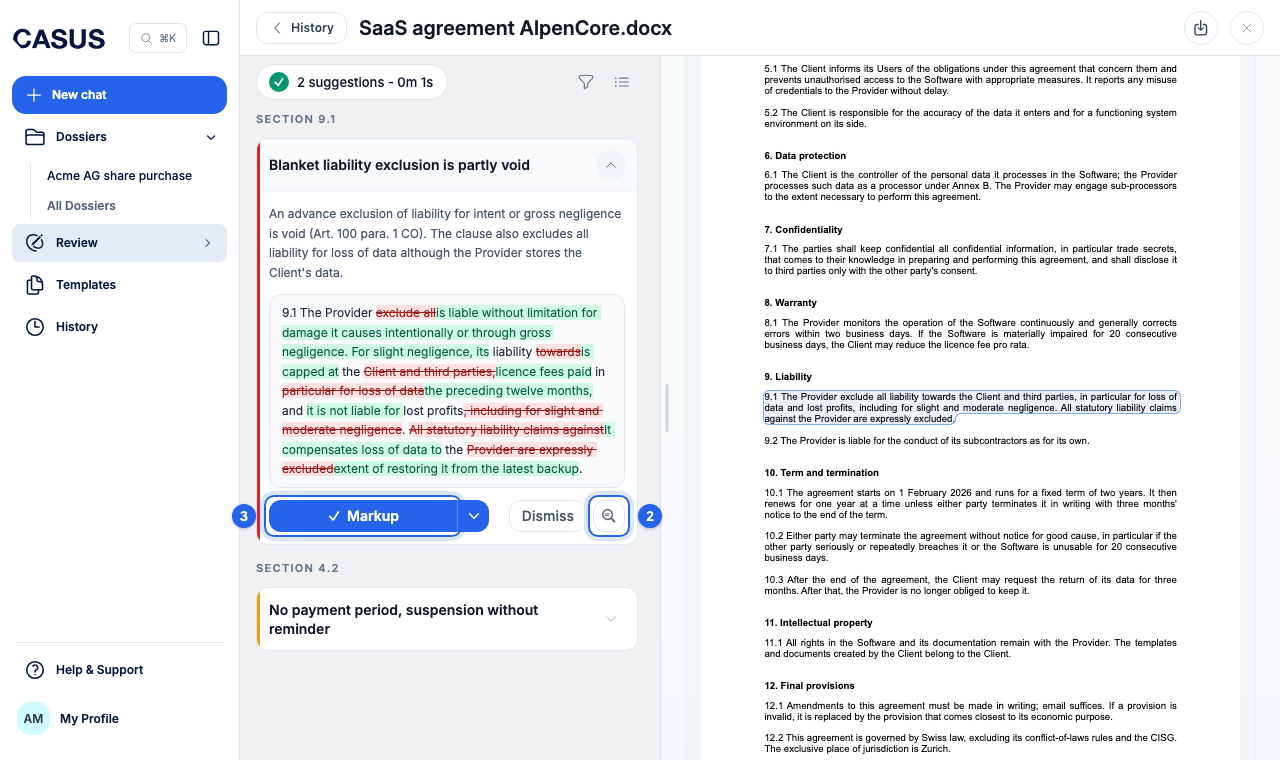
- 3In a DOCX, Markup inserts the suggestion as a tracked change. Apply directly replaces the text without marking it.
- 4In a PDF the original stays unchanged. Add comment adds the suggestion as a comment.
- 5Dismiss leaves a suggestion out, Revert undoes one you took.
- 6Click Download. For a PDF, choose Annotated PDF with your comments.
If it doesn't work
If a suggestion won't apply, the place in the document has probably changed. The article A suggestion won't apply helps then.
This might help too
Still have questions?
Email us: contact@getcasus.com